A new Bricks Builder feature was introduced in BricksBuilder version 1.11. This allows you to create filters without using additional plugins like WPGridBuilder and FacetWP.
Filters not only make viewing pages delightful, it also increases the time on page.
In this short article, we’ll talk about how to build Bricks builder Filter and how to troubleshoot the common error.
Table of Contents – Bricks Filter Fix
How It Works
Bricks filter works by querying specific Bricks JS and sorts the input after interaction.
In plain English, once you click on the filter, it will sort out the posts.
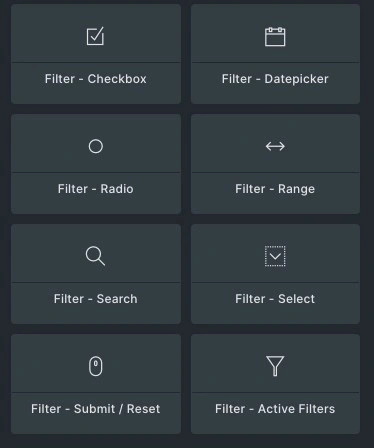
Bricks filter currently works for limited filtering tool for posts like
- Radio and Button
- Checkbox
- Range
- Datepicker
- Search
- Select
- Submit or Reset
- And Active Filters.
How to Setup Bricks Filter
Setting up Bricks Filter is easy and can be done in two places.
- Archive Page or
- Page with Query
Here’s how you setup a Bricks Filter
- Go to the any and run Bricks Builder
- Add a Query loop post
- Add Filter
- Tweak it based on your Design System
View it on the front end, and remember to test it using Incognito mode (logged out) and uncached.
The Common Bricks Filter Error
The common problem with Bricks Filter are two
- Plugin conflict – happens if you are using other filter plugins
- Blocked REST API
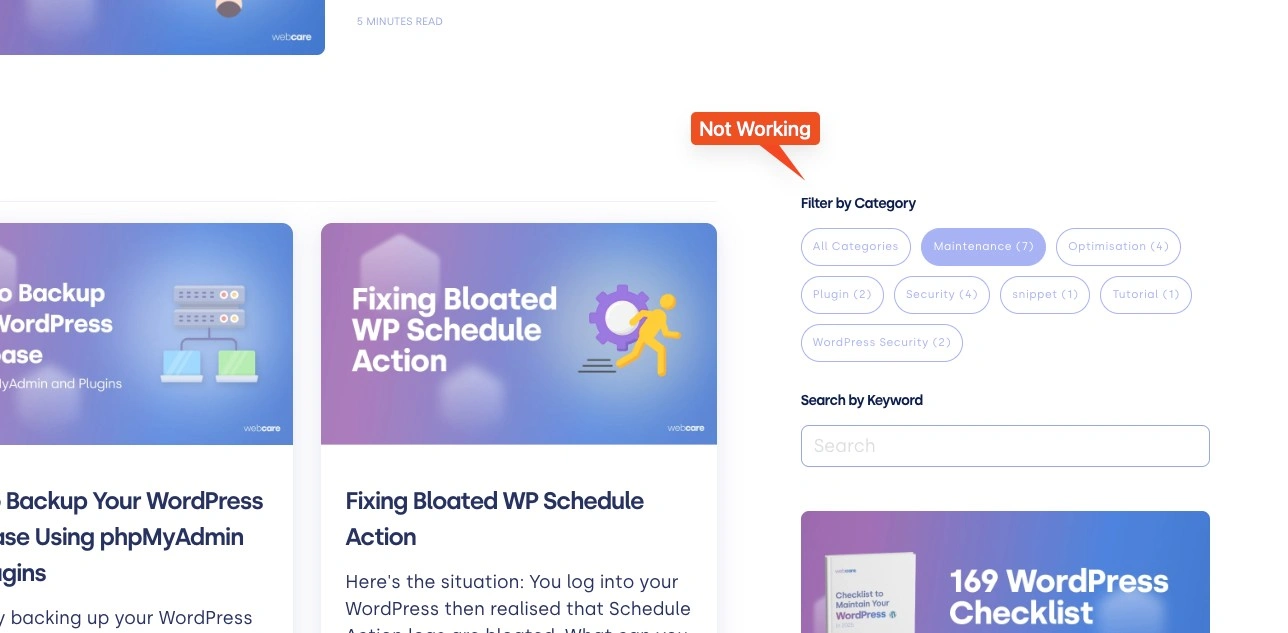
In our case, it was the REST API. We had set up our WordPress to be strict with REST API.
A REST API (Representational State Transfer API) is a method for software to communicate over the internet using HTTP. It allows applications to access and manipulate data on a remote server by following a set of simple, stateless requests (like GET, POST, PUT, DELETE).
REST APIs are popular because they use standard HTTP methods and are easy to implement, allowing web applications, mobile apps, and IoT devices to interact seamlessly with a central server or service, such as a database or another application.
How to Troubleshoot Bricks Filter
Bricks uses Javascipt to filter and render the content, therefore we use Console in Inspect Tool.
To go there, Right click on the page, select “Inspect Tool, then navigate to “Console” on the top bar. It will show you the immediate errors.
The errors are shown in red.
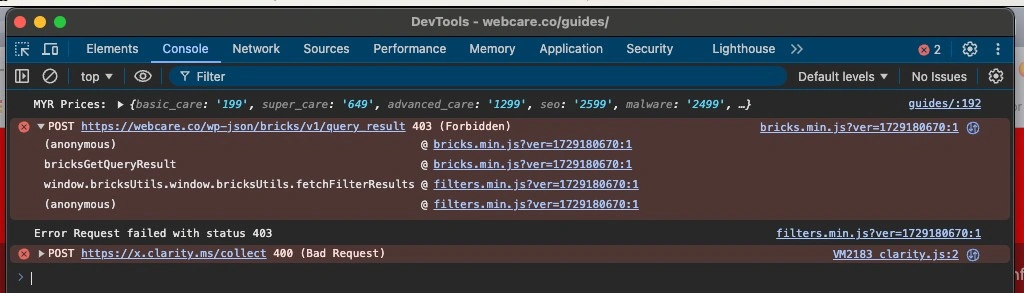
From the error above, we can see that it’s returning 403 error.
A 403 error, or “403 Forbidden” error, is an HTTP status code that means a server understands a request but refuses to process it
Which means, we’ve either blocked the REST API or the firewall is too strict.
The Fix to Bricks Filter
Since I am pretty much uptight with security (after our clients got multiple hacks), we decided to increase the security.
There are two ways we blocked the REST API
- Admin and Site Enhancement (Pro)
- Ninja Firewall
Here are the screenshot
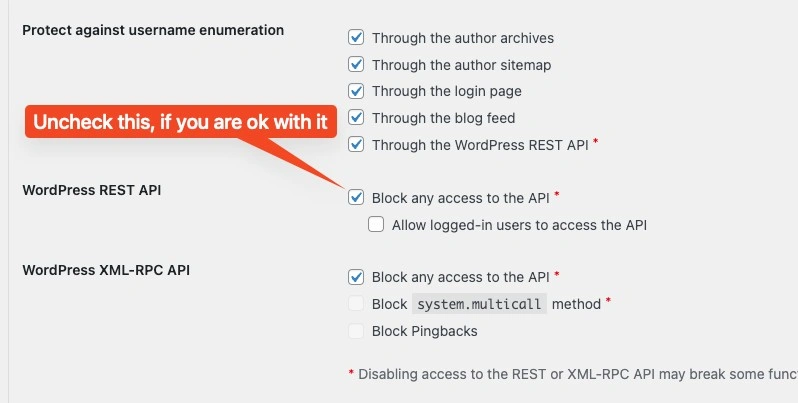
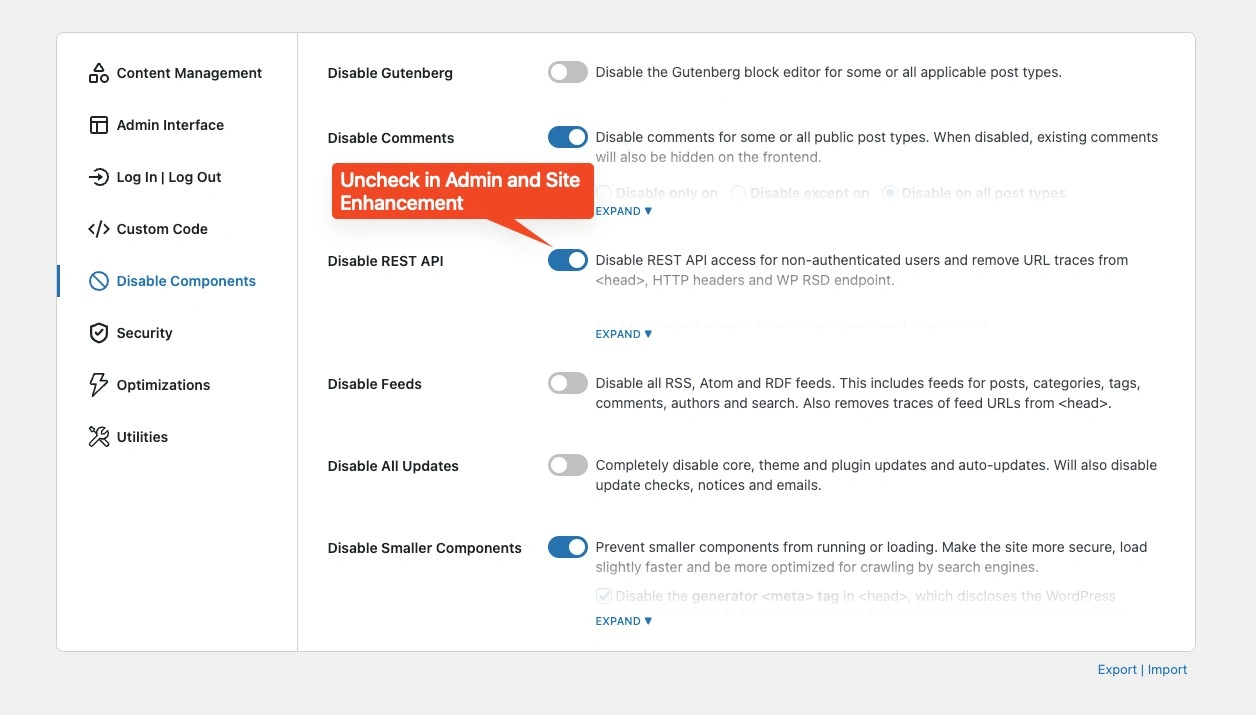
With these two disabled, our Filter now works beautifully.
Conclusion
While Bricks Filter may work right of the box, it’s good to note that it’s still in experimental phase. It may not work 100% of the time.
Building the Bricks Filter the right way enables us to troubleshoot quicker.
We might have to wait a while since they are coming up with Version 2 very soon. I reckon that’s going to be much stable version.
Other features I’d like to see is the ability to filter according to map.