You want a cool looking filter? Then IsotopeJs is your choice on Bricks builder.
In this short tutorial, I’ll show you how to create a filter using IsotopeJS in Bricks Builder.

Other tutorials I’ve seen are lengthy, twisty and with so much steps. I like to keep mine simple. You should be able to do it in just a few steps.
Let’s get started.
Table of Contents
Requirement
- Active Bricks License
The HTML Structure
There are two structures; the Button and Elements (to be sorted after clicking the button).
Building the Buttons
Build the buttons anyway you like. I recommend you keep it simple first.
Then using data-attribute, you add the “data-filter”. This will be used to filter the items later in the Javascript.
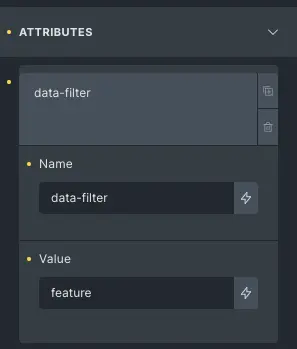
The “View All” button has a class that all Element have. In this case, I use the ‘.feature’ for the ‘data-filter’.
The rest of the button should be the filter elements class as the value in the ‘data-filter’ like ‘.proactive’, ‘.prevention’, ‘.reactive’. Without the ‘.’ of course
That’s all you have to do for the buttons.
Building the Elements
Build your elements like the following HTML structure
<div class="grid-benefit">
	<div class="feature prevention"> Content A </div>
	<div class="feature prevention"> Content B</div>
	<div class="feature prevention"> Content C</div>
	<div class="feature proactive"> Content D</div>
	<div class="feature proactive"> Content E</div>
	<div class="feature proactive"> Content F</div>
	<div class="feature proactive"> Content F</div>
	<div class="feature proactive"> Content G</div>
	<div class="feature reactive"> Content H</div>
	<div class="feature reactive"> Content I</div>
	<div class="feature reactive"> Content J</div>
	<div class="feature reactive"> Content K</div>
	.
	.

</div>
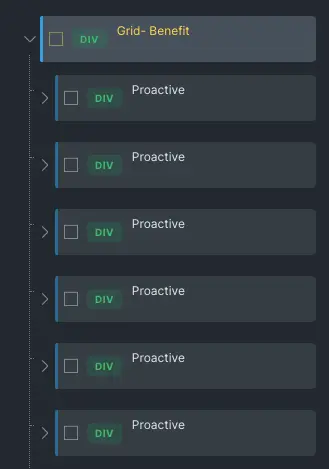
I like to group them in a single wrapper so that it’s easier to manage.
It should look something like this
The Javascript
<script src="https://unpkg.com/isotope-layout@3/dist/isotope.pkgd.min.js"></script>

<script>
var $grid = jQuery('.grid-benefit').isotope({
		itemSelector: '.feature',
		layoutMode: 'fitRows',
  });

jQuery('[data-filter]').click (function(e){
  jQuery('.btn-feature').removeClass('active');
  $grid.isotope({filter:'.'+jQuery(this).data('filter')});
  jQuery(this).addClass('active');
	});
</script>
Copy and paste the above code the Bricks code editor.
Explanations of the Javascript
Line 1: Use Isotope without download or need to enqueue
Line 4: Choose the parent class or wrapper
Line 5: Choose the element class
Line 6: Choose the Isotope Layout
Line 9: Set jQuery selector to the button
Line 10: Remove the ‘active’ class before assigning it
Line 11: The filter, which shows the button clicked
Line 12: Add ‘active’ class to button after click
To run jQuery in WordPress, you need to use ‘jQuery’ as oppose to ‘$’. It’s just how jQuery works in WP.
The CSS Codes
<style>
	button {background:white; color:blue}
	.active, button:hover {background:blue; color: white}
	.feature {float:left; width:19rem; margin: 0.5rem}
</style>
I kept this simple, so you can update and change the way you prefer.
You can also attach this to code block above.
The Result
You can see it in action on the main page how it looks like.
You can do more with IsotopeJS like change the layout, sorting and so forth. Read more at the official documentation IsotopJS.