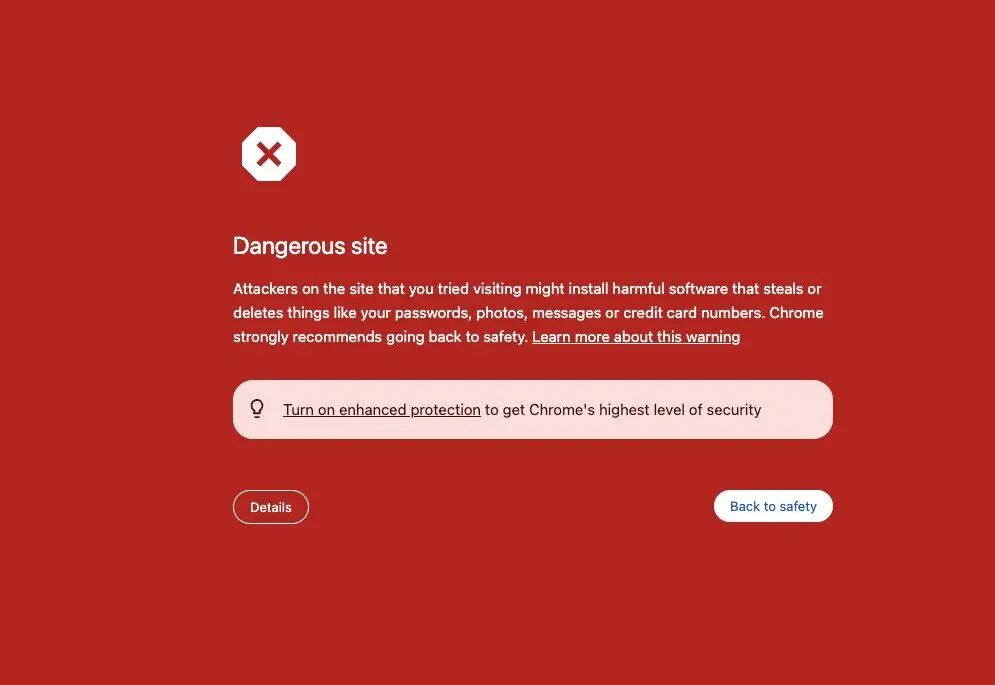
If you received this error on Google Chrome, being flagged as “Dangerous Site”, it could be two things,
- Your website was hacked
- False flag by Google Chrome
That red Chrome screen means Google Safe Browsing has flagged your domain as “dangerous.”
Even if you’ve scanned and found no malware, the flag could still stick for a few reasons. Here’s how to properly fix it.
Fixing Google Safe Browsing
Here are the steps-by-step to regain back Google’s trust.
Step 0: Clear the Malware
You can run scans using the following
- https://sucuri.net — quick malware + blacklist check.
- Ninjascanner – for files related
- WP Scan – for more advanced control
I usually go through these orders, so you don’t have to wait for the scanning to complete. It moves from simple to more advance.
Once I’ve captured the issue, I try to solve it quickly. Sometimes, it’s file, sometimes someone injects code or some part of your team upload untrustworthy plugin.
Take your time to solve this issue. If possible, plug the problem so it won’t happen again.
Ready to take your WordPress security to the next level? With WebCare, you get expert-level security and ongoing maintenance tailored to keep your site safe, fast, and running smoothly.
From proactive protection to regular updates and hands-on support, we handle it all so you can focus on what you do best. Don’t leave your site vulnerable—let’s secure it together!
Get started with WebCare today and protect your WordPress site with confidence!
Step 1: Double-check with Google
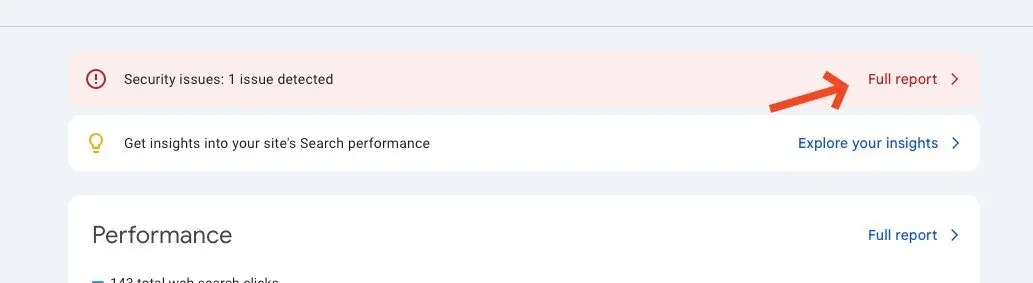
Go to Google Search Console → Security Issues.
If your site is verified, you’ll see exactly why it’s flagged — usually one of these:
- Malware or hacked content
- Unwanted software
- Phishing or deceptive content
- Suspicious redirects or scripts
If it’s not verified, add your domain and verify ownership first.
You can read more here at Google Webmaster
Step 2: Cross-check externally
Run scans from:
- https://transparencyreport.google.com/safe-browsing/search — see what Google’s listing.
- https://www.virustotal.com — upload your domain.
- https://sucuri.net — quick malware + blacklist check.
Even a single bad redirect or injected script (e.g. from outdated plugins, ads, or compromised JS files) can trigger it.
Need help to maintain WordPress?

Step 3: Audit the technical side
On your WordPress
- Update everything — core, plugins, themes.
- Delete unused plugins/themes.
- Run Wordfence or MalCare for a deep scan.
- Check
.htaccessandwp-config.phpfor weird code. - Inspect
<head>for strange<script>or<iframe>tags. - Check outbound links (especially in footer or injected widgets).
Step 4: Clean up and Request Review
Once you’re 100% sure it’s clean:
- In Google Search Console → Security Issues, click “Request a Review.”
- Write a short, clear summary: “The site was flagged for malware. We’ve fully scanned, cleaned, and secured the site. All scripts and plugins are verified clean. Please re-review.”
Reconsideration typically takes 1–3 days, sometimes up to a week.
Why does Google Safe Browsing kicks in?
Why Google Marks a Site as Dangerous
Google Safe Browsing automatically flags websites that might harm visitors — even unintentionally.
It scans billions of pages daily for signs of malware, phishing, or suspicious redirects. If your site is hacked, runs unsafe scripts, hosts shady ads, or shares a server with infected domains, Google may block it to protect users.
Even clean sites can be caught by mistake — often due to outdated plugins, injected code, or scripts from untrusted sources. The fix is to scan, clean, secure, and then request a review in Google Search Console to lift the warning.
At WebCare, we monitor, secure, and clean WordPress sites so your business never ends up behind that red “Dangerous site” screen again.