When I first started working with WordPress in 2007, I was overwhelmed by the vast array of plugins available. It felt like walking into a giant toolbox without knowing which tools to pick.
Over the years, I’ve tested, broken, and fixed countless sites, and through it all, I’ve discovered some must-have plugins that I now consider essential. But, how many plugins are too many?
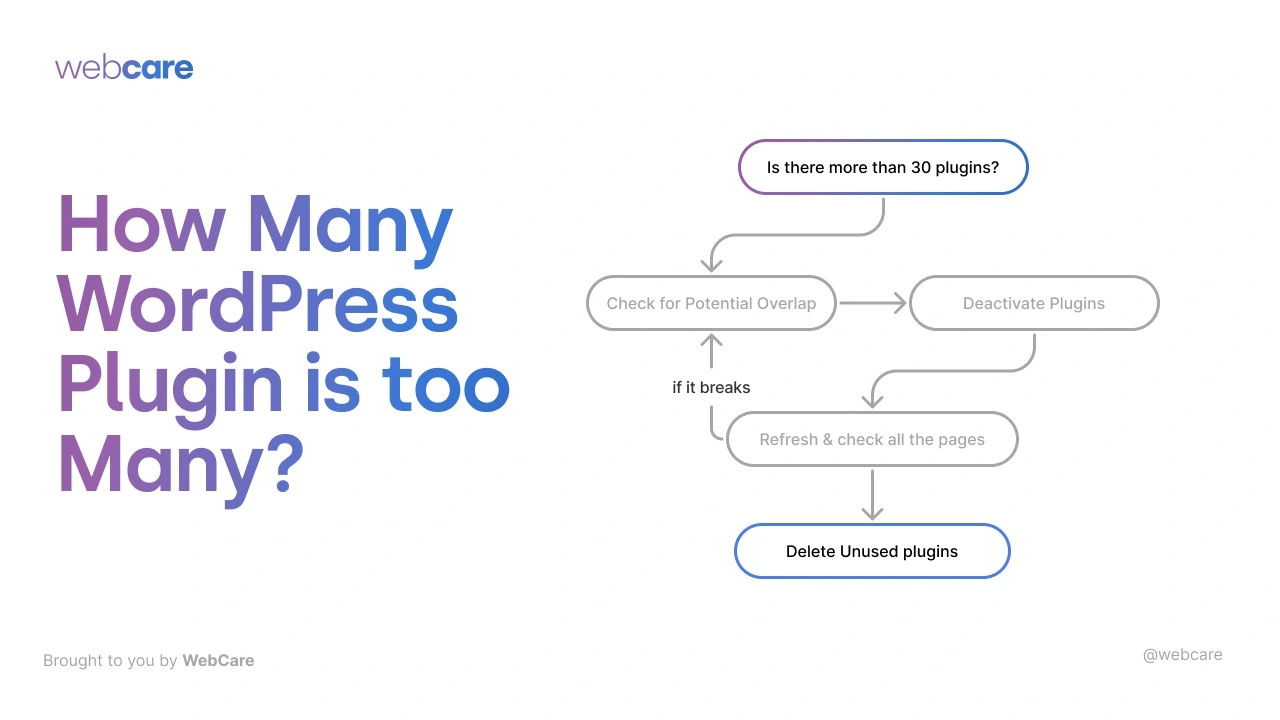
As a seasoned WordPress developer, I recommend not more than 30 plugins.
Let me take you on a journey through the categories that I believe are critical for any WordPress site.
Table of Contents
Plugins Categories
Sadly, WordPress own directory does not have categories (but they have tags), so I came up with some of my own categories to help you understand.
- Security
- Page builders
- Backup
- History
- Utility
- Marketing
- Automation
Let’s dive into each one.
1. Security Plugins: My First Line of Defense
In my early days, I learned the hard way how vulnerable websites can be. After a painful hacking incident, I knew security had to be a priority.
Plugins like Wordfence and Sucuri Security became my initial go-to protectors. They provide firewalls, malware scans, and login protection—everything you need to sleep a little easier at night.

Trust me, a secure site is a happy site.
Then I discovered a better approach, more plugins, more secure, read more on Security and why one security plugin is not enough.
I settle with Ninjafirewall and Defender.
2. Builders: The Creative Freedom vs. Control Dilemma
When I first encountered drag-and-drop page builders, I was amazed at how quickly I could design pages without touching a single line of code.
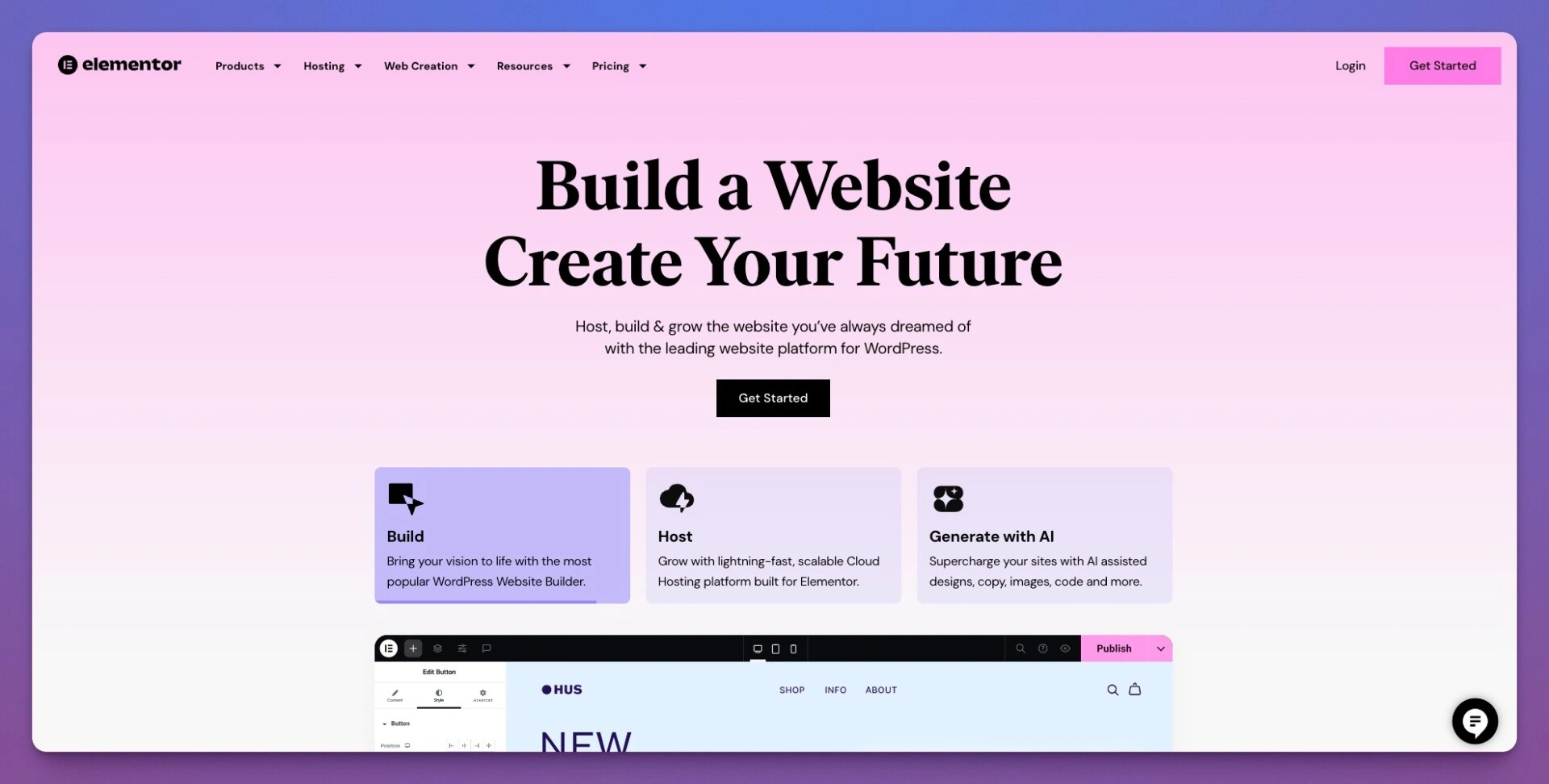
Tools like Elementor, Beaver Builder, and WPBakery made site creation faster and more accessible. For beginners, personal bloggers, or small business owners, these no-code builders are perfect.
They allow you to create visually appealing sites without any technical expertise.
But there’s a flip side. As I grew more experienced and worked with larger clients, I realized the limitations. Builders can bloat your site with unnecessary code, slow down performance, and restrict customization.
If you’re someone who loves having full control over your CSS and performance optimizations, no-code solutions might not be for you.
For businesses generating over USD 2 million in revenue, I strongly recommend investing in a professional web developer.
At this level, your website needs to be a high-performing, finely-tuned asset. Custom development ensures optimal speed, security, and flexibility that no-code builders often can’t deliver.
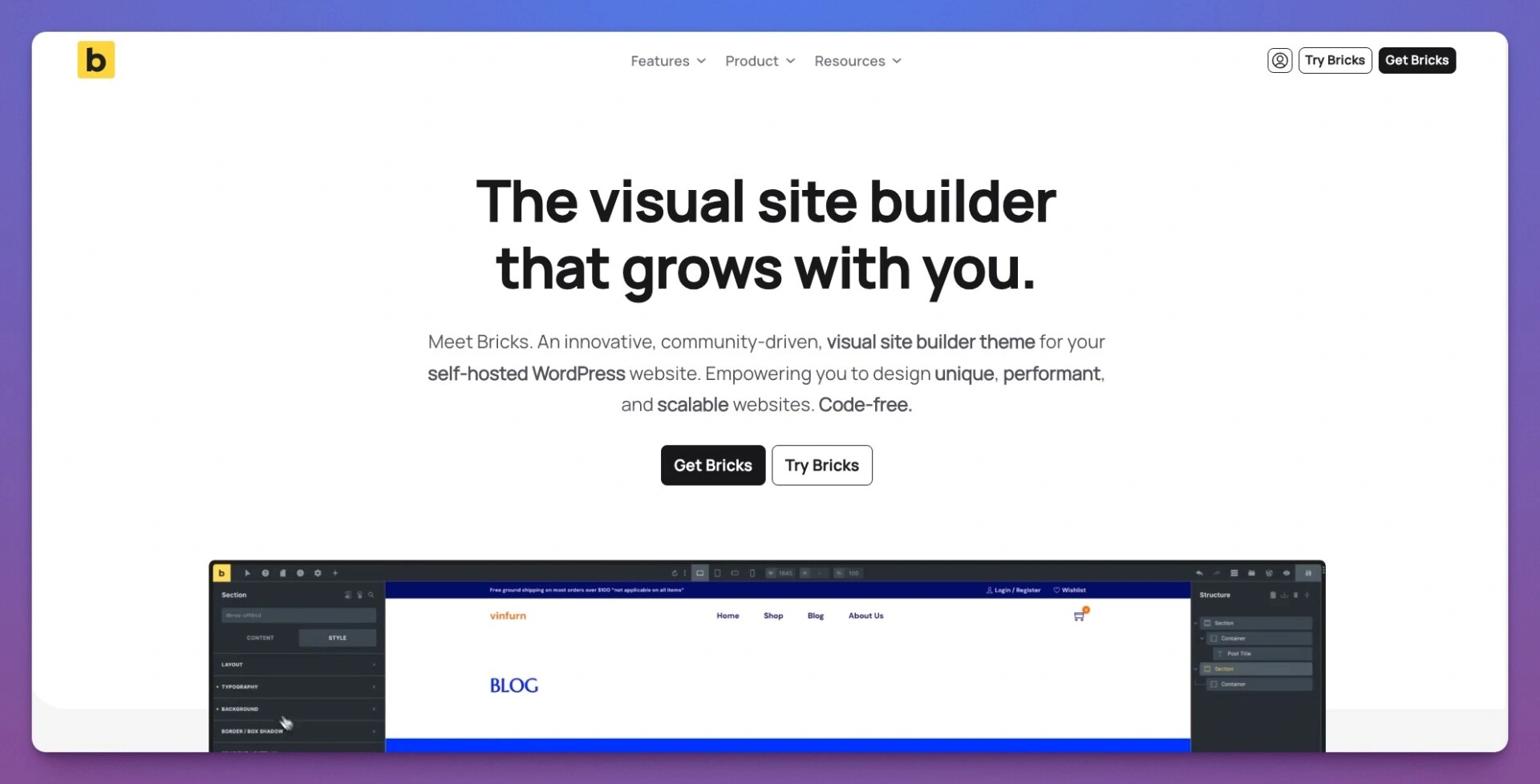
I personally use Bricks builder, for it’s extensive PHP and custom query support.
In short, no-code is great for getting started, but when your business scales, it’s time to level up.
3. Backup Plugins: My Digital Safety Net
I’ll admit, I used to overlook backups—until I lost an entire site. Now, plugins like UpdraftPlus and All-in-One Migration are non-negotiable. They save my data regularly, offering cloud storage options and one-click restoration.
Knowing I can recover everything if something goes wrong gives me immense peace of mind.
At WebCare, we set automated offsite backup, which does eat up your hosting space.
4. History Plugins: Tracking Every Change
Ever wondered who edited what, and when?
I sure did, especially when working on team projects. That’s when I discovered WP Activity Log and Simple History.
These plugins track every action on the site, making troubleshooting and accountability much easier. They’re like my site’s personal diary—no mystery changes, just transparency.
5. Utility Plugins: The Small Tools That Make a Big Difference
Utility plugins might not sound exciting, but they solve those small, annoying problems that can slow you down.
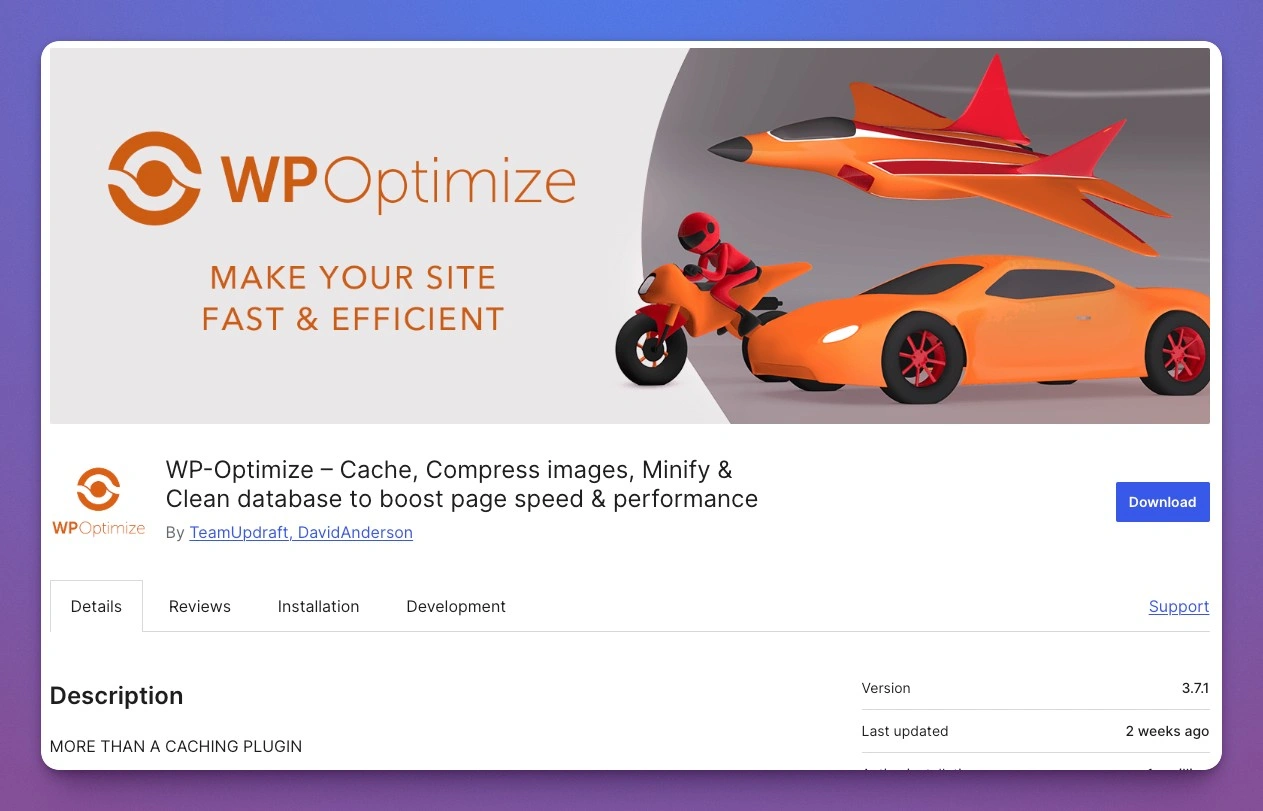
For instance, WP-Optimize keeps my database clean and fast, while Redirection helps me manage 301 redirects effortlessly.
These plugins are the unsung heroes that ensure everything runs smoothly behind the scenes.
If your WordPress starts to slow down, try optimising your database.
6. Marketing Plugins: Driving Growth and Engagement
As an agency that focuses on lead generation, marketing plugins are essential. RankMath SEO helps optimize my content for search engines, while MonsterInsights integrates Google Analytics seamlessly.
For forms, Fluent Form is my favorite. (It’s strange WordPress doesn’t have it’s own contact form, it’s been 20 years!)
These plugins turn my website into a powerful marketing machine, helping me attract and retain visitors with ease.
7. Automation Plugins: Working Smarter, Not Harder
Why do everything manually when automation can save you hours? WP Cron Control schedules tasks, while Zapier connects my WordPress site with third-party apps.
Automation lets my site work behind the scenes—sending emails, syncing data, and handling repetitive tasks—so I can focus on more important things.
New comers like SureTrigger might be worth your time.
Plugins to Avoid at All Cost
Not all plugins are created equal, and some can do more harm than good. Over the years, I’ve learned to be cautious about plugins that promise “all-in-one solutions” but deliver poorly optimized, bloated code.
These plugins can significantly slow down your site, cause conflicts with other essential tools, and even introduce security vulnerabilities. Be especially wary of plugins with outdated versions or those that haven’t been updated in years.
They may be susceptible to security breaches or simply incompatible with the latest WordPress updates.
Additionally, avoid plugins from unknown developers without solid reviews or a credible support team. They might seem convenient at first, but when something breaks, you’ll find yourself stuck with little to no assistance.
Always prioritize plugins with active development, strong user ratings, and reliable support—your website’s performance and security depend on it.
Plugins to Avoid
- Nulled plugins (Illegally obtained plugins)
- Outdated or End-of-Life plugins
- Low rating plugins
Managing Your Plugins Wisely
While plugins are powerful tools that extend WordPress’s capabilities, it’s crucial to manage them carefully.
Installing too many plugins can lead to performance issues like slower loading times and increased server strain. Even worse, plugins can sometimes conflict with one another, especially if they serve similar functions or are poorly coded.
These conflicts can break critical site features, leading to frustrating troubleshooting sessions.
To avoid these pitfalls, periodically audit your plugins. Deactivate and delete unused plugins, and always ensure your active ones are necessary and well-maintained.
Before installing a new plugin, check reviews, update history, and compatibility with your WordPress version. A lean, well-curated set of plugins ensures your website runs smoothly, securely, and efficiently.
Anything Plugins I Missed?
Choosing the right plugins is like building a house—you need a solid foundation, the right tools, and a bit of creativity.
Each of these plugins has become an essential part of my WordPress journey, helping me create secure, high-performing, and lead-generating sites.
Whether you’re a seasoned pro or just starting, having the right plugins can make all the difference.